Flower Fragrance Patterns: A Practical Guide to Choosing and Using Digital Paper for Better Craft Results
When you first come across a digital paper set like Flower Fragrance Patterns, it is easy to assume that using it is simply a matter of downloading and printing. The reality is more nuanced, and small oversights in how you select, prepare, or apply these patterns can affect everything from the final look of your project to the time you spend reworking elements. Whether you are a seasoned designer or a hobbyist creating party decorations, understanding what this type of resource offers and where most people go wrong will save you frustration and help you get results that actually meet your vision.
What Flower Fragrance Patterns Actually Offers
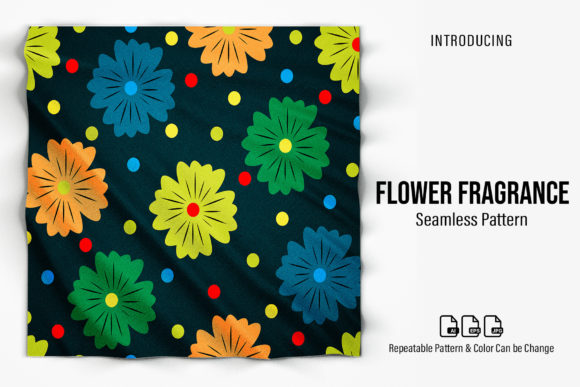
This digital paper set provides a collection of repeatable floral patterns at 1000×1000 pixels and 300 dpi resolution. The files come in EPS, AI, and JPG formats, which means they are compatible with most design software, from professional tools like Adobe Illustrator to simpler applications. The colour is adjustable, and the patterns are designed to repeat seamlessly, making them suitable for backgrounds, wrapping paper, invitations, gift tags, wallpaper mockups, and countless other uses.
What many people overlook is that the preview image is strictly a display example. The mockup you see in the product listing is not included. This distinction matters more than you might think, especially if you are planning a project that depends on a specific layout or visual context. Understanding what is in the file and what is not is the first step toward using it effectively.
Common Misunderstandings About File Formats
One of the most frequent mistakes people make is assuming that all file formats are interchangeable or that one format will work for every purpose. The Flower Fragrance Patterns ZIP file includes an EPS file, an AI file, and a JPG file. Each serves a different function, and choosing the wrong one can lead to unnecessary work or poor quality output.
The JPG file is a raster image. It opens easily in almost any program and is fine for quick previews or low-stakes projects. However, if you enlarge it significantly, you will notice pixelation because it is limited to the original 1000×1000 pixel resolution. Beginners often make the mistake of scaling up a JPG for a large banner or wall decoration, only to find that the pattern becomes blurry or jagged.
The EPS and AI files are vector-based. They allow you to scale the pattern to any size without losing quality. If you are creating a poster, a large gift wrap sheet, or any project where the pattern needs to be enlarged, these vector formats are the right choice. Professionals who work in graphic design typically default to the AI file for editing colour and layout, while the EPS is a good fallback for cross-platform compatibility.
To avoid problems, match the file format to your project. Use the JPG for small-scale items like gift tags or quick digital mockups. Use the EPS or AI files for larger prints, custom colour adjustments, or any situation where you need to maintain sharpness at scale.
The Trap of Overlooking Resolution and Size
Another common misunderstanding involves resolution and pixel dimensions. The files are 1000×1000 pixels at 300 dpi. That is a respectable size for many craft applications, but it is not infinite. If you plan to print a pattern across a large surface, such as wrapping paper for a big gift box or a background for a party banner, you may need to tile the pattern or scale it carefully.
A 1000×1000 pixel image at 300 dpi prints at roughly 3.3 × 3.3 inches. For larger areas, you will either need to repeat the pattern (which is easy because it is designed to be repeatable) or work with the vector files to scale it up without quality loss. Some users mistakenly try to stretch the JPG version to cover a full page, which results in a soft, unprofessional look. The better approach is to use the repeatable nature of the pattern and create a seamless tile.
If your project requires a large continuous area of the pattern, plan ahead. Open the AI or EPS file, scale the pattern tile to your desired size, and then duplicate it as needed. This method preserves the crispness of the design and avoids the disappointment of a low-resolution print.
Colour Adjustment: What Beginners Get Wrong
The product description notes that the colour can be changed. This is a powerful feature, but it is also where many people make avoidable mistakes. Beginners sometimes assume that colour changes can be made easily in any program, even when they are working with a flattened JPG.
If you open the JPG file in a basic photo editor and try to adjust the hue or saturation, you may end up with uneven results, muddy colours, or unintended shifts in the floral details. The JPG is a flattened image, meaning the colour information is baked in. Changing it globally can affect the entire composition in ways that look unnatural.
The smarter approach is to use the AI or EPS file in a vector editing program such as Adobe Illustrator or Affinity Designer. Because the pattern elements are separate, you can select specific parts and change their colours individually or apply a global colour shift that maintains the integrity of the design. Even if you are not a professional, learning to open and adjust these files is a small investment of time that yields noticeably better results.
If you do not have access to vector editing software, you can still change the colour of the JPG using image editing tools like Photoshop or GIMP, but work with adjustment layers rather than direct pixel editing. Use a hue/saturation adjustment layer or a colour balance layer so you can fine-tune without permanently altering the original image.
Repeatable Patterns: A Feature Many Misuse
The fact that Flower Fragrance Patterns is a repeatable pattern is one of its strongest selling points, yet it is frequently misunderstood. Some users assume that simply placing the image multiple times in a document will create a seamless look. In practice, if the edges are not aligned correctly, you will see visible seams or awkward gaps.
The pattern is designed to tile seamlessly, but only if you set it up properly. If you are using design software, look for the pattern fill or tile option rather than manually copying and pasting. In Illustrator, you can create a pattern swatch from the file. In Photoshop, you can define it as a pattern and then fill a layer. In Canva or similar tools, you may need to upload the image and use the repeat or background feature to ensure it tiles correctly.
Another mistake is resizing the pattern tile before tiling it. If you scale the original 1000×1000 pixel tile down or up, the repeat may no longer match at the edges. Always tile the pattern at its native size or use the vector file to scale it precisely and then create a new tile from the scaled version. This extra step prevents visible mismatches and saves you from having to redo your layout later.
Mistakes in Project Planning and Testing
Jumping straight into a final project without testing the pattern first is a surprisingly common error. You might have a clear vision for a greeting card or a party invitation, but colours on screen often look different when printed, and the pattern scale may feel too large or too small for your specific item.
Print a small test swatch on the paper you intend to use. Check the colour accuracy, the sharpness of the floral details, and whether the pattern repeats as expected. This is especially important if you plan to change the colours, as different printers and paper types handle colour shifts differently. A quick test can save you from wasting expensive paper or spending hours assembling a project that does not look the way you imagined.
Also consider the use case. A pattern that looks beautiful as a full wallpaper may feel overwhelming on a small gift tag. Experiment with scaling the pattern down or using it as an accent rather than a full background. The flexibility of a digital set like this means you are not limited to using the pattern at full size. Sometimes a subtle, smaller-scale version of the design works better for intimate projects like invitations or cards.
Overlooking the Mockup and Preview Details
The product listing makes it clear that the preview image is for display purposes only and that the mockup is not included. This is easy to miss when you are browsing quickly, and it can lead to disappointment if you expected a ready-made template. Some people buy digital paper sets assuming they can drop their content directly into the mockup scene shown in the example.
Check the product description carefully before purchasing. The Flower Fragrance Patterns set includes the pattern files themselves, not the staged scenes or props used in the preview. If you need a mockup template for presenting your designs to clients or for social media, you will need to source that separately or create your own. Knowing this upfront helps you set realistic expectations and plan your workflow accordingly.
Practical Advice for Getting the Most Out of the Set
Start by unzipping the folder and reviewing all three files. Open the AI or EPS file in your preferred vector software and experiment with colour adjustments before you begin your actual project. Save a few colour variations so you have options ready to go. This small upfront effort makes later steps faster and more flexible.
If you are a beginner, do not let the vector files intimidate you. Many free or low-cost programs like Inkscape or Affinity Designer handle EPS and AI files well, and there are plenty of tutorials online that walk you through basic colour changes and pattern tiling. Investing an hour or two in learning these skills will pay off across multiple projects.
For entrepreneurs and small business owners who use patterns for product packaging or branding materials, consistency matters. Use the vector files to create a branded colour palette that matches your existing identity. Because the patterns are repeatable, you can apply them across different product lines while maintaining a cohesive look.
Marketers and bloggers can use the patterns for social media backgrounds, blog headers, or digital products. The 300 dpi resolution ensures that on-screen use looks sharp, and the repeatable nature means you can extend backgrounds across wide banners without stretching an image awkwardly.
Final Considerations Before You Download or Use the Set
Before you commit to a project with Flower Fragrance Patterns, confirm that your software supports the file formats included. Most modern design tools open EPS and AI files, but some older or basic programs may only handle JPG. If you plan to change colours or scale the pattern significantly, the vector files are essential, so check compatibility early.
Think about the end use. If you are creating digital products like wallpapers or printable art, the JPG at 300 dpi is perfectly adequate as long as you keep the print size within reasonable bounds. For physical products like gift wrap, invitations, or party decorations, the vector files give you the freedom to print at any scale without compromise.
Finally, remember that digital paper sets are tools, not finished products. Your creativity, planning, and attention to detail are what turn a pattern into a memorable invitation, an elegant gift wrap, or a charming party decoration. By avoiding the common mistakes around file choice, resolution, colour adjustment, and tiling, you put yourself in a position to get the best possible result from this set. Whether you are crafting for personal enjoyment or professional output, a thoughtful approach always makes the difference.